WordPress
Install the free WPCode plugin, then paste the script in Code Snippets → Header & Footer → Footer and save.
Works with any website
Built with WordPress, Shopify, Wix, Drupal, Squarespace, Webflow or by hand: if your site lets you add a script, it can have a chatbot that answers your visitors from your own content, 24/7, in their language.
Step 1
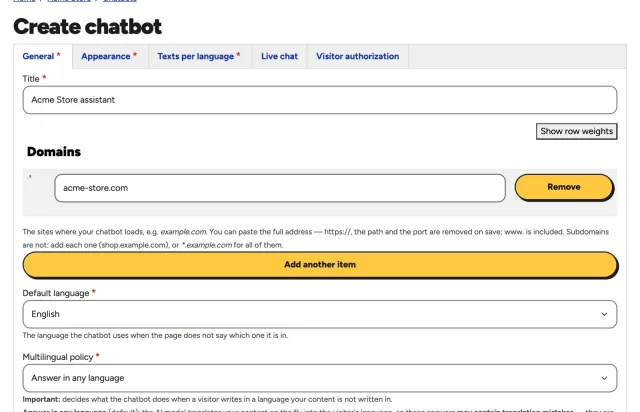
Give it a name and the domain of your website. The chatbot only loads on the domains you list, so copying its script to another site does not work.
Step 2
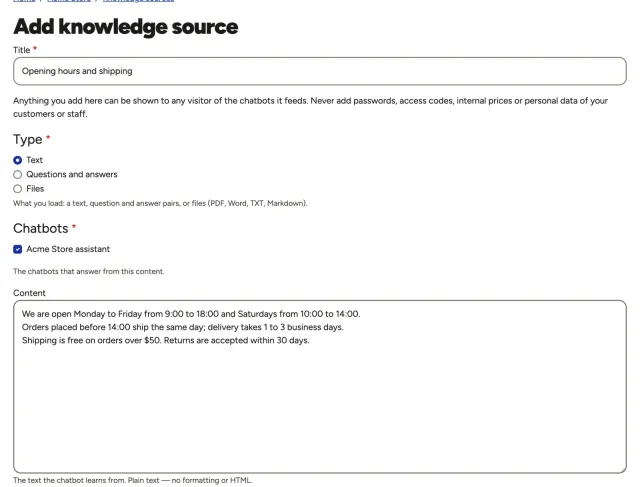
Paste texts, write questions and answers, or upload PDF, Word, TXT or Markdown files: your hours, policies, services, prices. Your chatbot answers only from this content, in your visitors' language. As soon as you create the chatbot, the panel brings you here.
Step 3
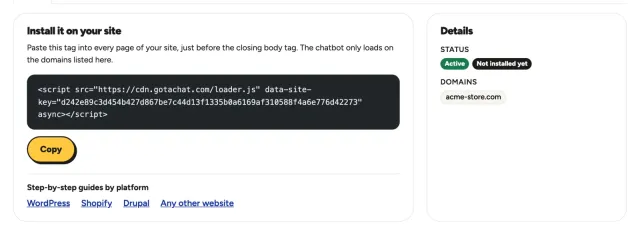
When you save your first knowledge source, the panel takes you to your installation script. Copy it and paste it just before the closing </body> tag of your site, or in your platform's custom code setting. Publish, and the chatbot appears on every page that has it.
Where to paste it
Every platform has a place for scripts that load on all pages. This is where it is today in each one.
Install the free WPCode plugin, then paste the script in Code Snippets → Header & Footer → Footer and save.
Online Store → Themes → … → Edit code, open theme.liquid and paste it just before </body>. Duplicate the theme first as a backup.
Install the Header and Footer Scripts module and paste the script in its footer field. Clear the cache.
Settings → Custom Code → Add Custom Code: paste it, choose All pages and Body - end. Needs a paid plan with a connected domain.
In the Pages panel, Custom Code → Code Injection: paste it in Footer and save. Available on Core, Plus and Advanced plans.
Site settings → Custom code: paste it in Footer code, save and publish the site. Needs a paid site plan.
Paste it before </body> in the template or footer that all your pages share, or in your tag manager. Upload the change and clear any cache.
Questions
Yes, if it lets you add custom code or a script: WordPress, Shopify, Wix, Squarespace, Webflow, Drupal, Joomla, or a site built by hand. Some builders only allow scripts on paid plans.
No. You copy one line from your panel and paste it where your platform accepts scripts. Everything else — what it knows, how it looks, its languages — you set in the panel.
The script loads with async: your page does not wait for it. The chatbot appears a moment after the page.
Check that your site's domain is in the chatbot's Domains, then clear your site's cache and any optimization plugin. A cookie banner can hold scripts until the visitor accepts: mark it as functional. Look at the live site in a private window, not in your builder's editor.
Yes. A chatbot can load on several domains, and you can create one chatbot per site, each with its own knowledge and look. How many depends on your plan.
This is a guide, not a guarantee: menus, names and steps can change with your platform's version, your theme and the plugins or modules installed on your site, and some of them can block or delay scripts. If something looks different or the chatbot does not appear, the support assistant in your panel can help you.