1. Duplicate your theme
Go to Online Store → Themes. Next to your current theme, open the … menu and choose Duplicate. That copy is your backup.
Installation guide
Paste one line in your theme and your chatbot answers your shoppers — shipping, returns, sizes, hours — from your own content, 24/7, in their language. No app to install.
Step 1
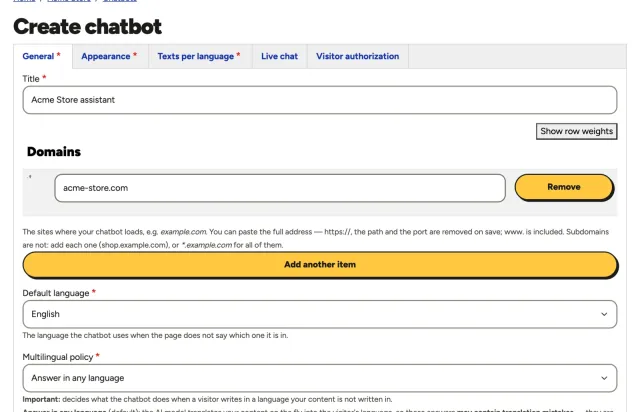
Give it a name and the domain of your website. The chatbot only loads on the domains you list, so copying its script to another site does not work.
Step 2
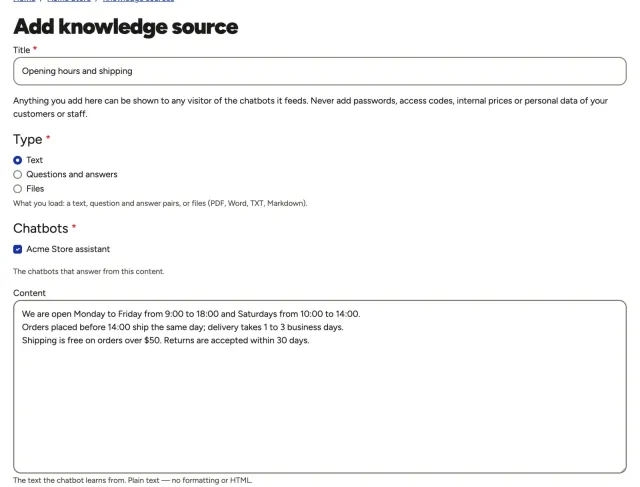
Paste texts, write questions and answers, or upload PDF, Word, TXT or Markdown files: your hours, policies, services, prices. Your chatbot answers only from this content, in your visitors' language. As soon as you create the chatbot, the panel brings you here.
Step 3
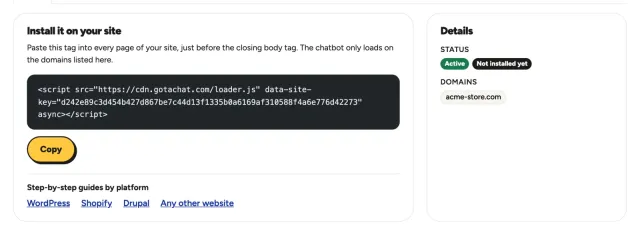
When you save your first knowledge source, the panel takes you to your installation script: one line with your chatbot's key. Click Copy. You can come back to it anytime from your chatbot's page.
Step 4
In your Shopify admin, on a computer. It takes about two minutes.
Go to Online Store → Themes. Next to your current theme, open the … menu and choose Duplicate. That copy is your backup.
On your current theme, open the same … menu and choose Edit code.
In the Layout folder, click theme.liquid: the frame that every page of your store shares.
Find </body> near the end of the file, paste your script on the line just above it and click Save. Open your store in a private window to see the chatbot.
Questions
Every page that uses your theme: home, collections, products, cart and your own pages. The checkout is Shopify's own and does not load theme scripts.
The script lives in that theme. A new theme does not have it, and Shopify notes that an update can leave out code changes. After either, check that theme.liquid still has it, and paste it again if not.
Free Shopify themes, yes. Per Shopify, a paid theme can be edited only after you buy it.
Your store has two addresses: your own domain and your-store.myshopify.com. Add every one your visitors use to the chatbot's Domains. Check that you saved theme.liquid on the published theme, not on the copy, and look at the store in a private window.
This is a guide, not a guarantee: menus, names and steps can change with your platform's version, your theme and the plugins or modules installed on your site, and some of them can block or delay scripts. If something looks different or the chatbot does not appear, the support assistant in your panel can help you.