Installation guide
Add an AI chatbot to your WordPress site
No developer and no theme changes: with the free WPCode plugin you paste one line, and your chatbot answers your visitors from your own content, 24/7, in their language.
Step 1
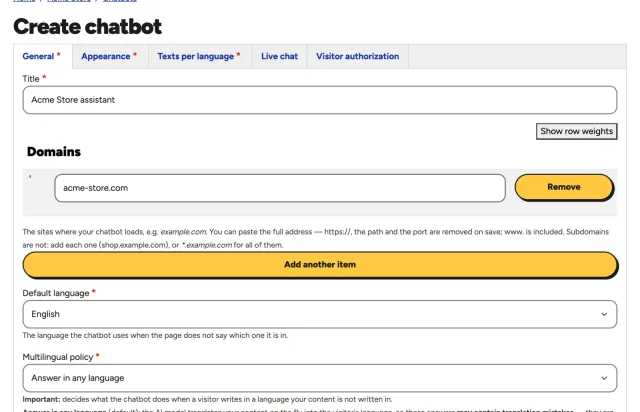
Create your chatbot
Give it a name and the domain of your website. The chatbot only loads on the domains you list, so copying its script to another site does not work.
Step 2
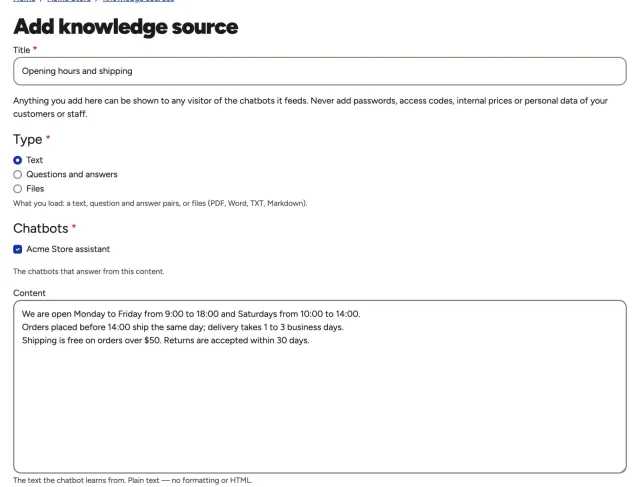
Add what it should know
Paste texts, write questions and answers, or upload PDF, Word, TXT or Markdown files: your hours, policies, services, prices. Your chatbot answers only from this content, in your visitors' language. As soon as you create the chatbot, the panel brings you here.
Step 3
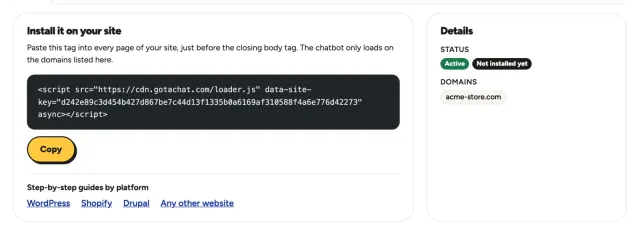
Copy your installation script
When you save your first knowledge source, the panel takes you to your installation script: one line with your chatbot's key. Click Copy. You can come back to it anytime from your chatbot's page.
Step 4
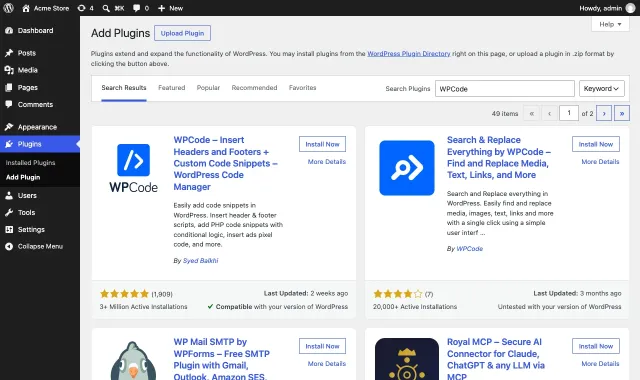
Install the free WPCode plugin
In your WordPress admin, go to Plugins → Add Plugin and search for WPCode. On WPCode – Insert Headers and Footers + Custom Code Snippets, click Install Now and then Activate.
It keeps the script in the plugin's own settings, so updating or changing your theme does not remove it.
Step 5
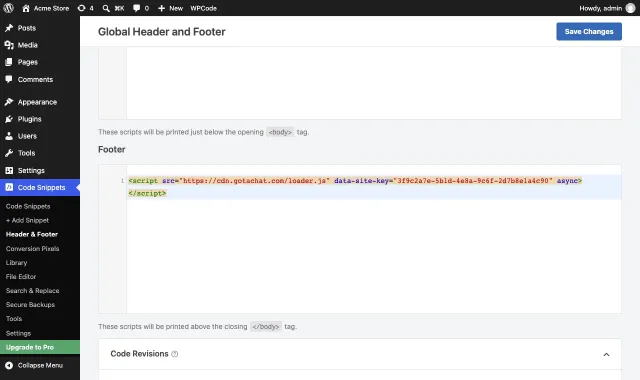
Paste it in the footer and save
Go to Code Snippets → Header & Footer, paste your script in the Footer box and click Save Changes.
Open your site in a private window: the chatbot appears in the corner of every page.
Questions
WordPress questions
Does it work with my theme or page builder?
Yes. WPCode adds the script to every page through WordPress itself, so it works with block themes, classic themes and builders like Elementor or Divi.
I saved it, but the chatbot does not appear
Clear the cache of your cache or optimization plugin (WP Rocket, LiteSpeed Cache, W3 Total Cache…). If it has an option to delay or combine JavaScript, exclude cdn.gotachat.com. Check that your site's domain is in the chatbot's Domains, and look at it in a private window.
Can I add it without a plugin?
Yes: a developer can paste it before </body> in your child theme. Without a child theme, a theme update overwrites that change; WPCode avoids it.
My site is on WordPress.com
On WordPress.com, installing plugins depends on your plan. If yours allows plugins, follow this same guide; if not, check your plan's options in WordPress.com.
This is a guide, not a guarantee: menus, names and steps can change with your platform's version, your theme and the plugins or modules installed on your site, and some of them can block or delay scripts. If something looks different or the chatbot does not appear, the support assistant in your panel can help you.